Frequently asked questions
Find quick answers about Pleney, bookings, integrations and more.
Account
6 vragen
Yes, Pleney has a free plan to get started immediately. You get access to all core features: unlimited event types, one booking link, automatic confirmation emails, and calendar integration. No credit card required, no hidden costs. Upgrade only when you need more features like team members, multiple booking links, or advanced analytics.
Creating an account is super simple and takes less than 2 minutes. Click 'Get Started' in the top right, choose to register with your email address or log in directly with your Google account. After registration, you'll be guided through our onboarding wizard that helps you set up your first business profile and event type. You can start receiving bookings immediately!
Absolutely! Pleney is perfect for entrepreneurs with multiple projects or businesses. You can create unlimited business profiles within one account. Each business has its own booking links, event types, branding, and settings. Easily switch between your businesses via the dropdown menu in the navigation bar. Ideal for consultants with different specializations, or entrepreneurs with multiple ventures.
Onboarding guides you step by step to set up your first business and event type.
Yes, in Settings under Profile you can choose Dutch or English.
In Settings under Team you can invite colleagues by email. They receive a link to join your business. You can assign roles (admin or member). Team members see the same bookings and can manage event types. In consultant mode you can set up routing so bookings are automatically distributed across the team.
Website
2 vragen
Click the globe in the top bar (top right) to switch between Dutch and English. On blog articles you'll also find NL/EN buttons next to the metadata. Your preference is saved in a cookie.
The blog is at pleney.net/blog with articles about productivity, bookings and tips. You can switch between Dutch and English per article via the Language buttons next to the metadata.
Bookings
9 vragen
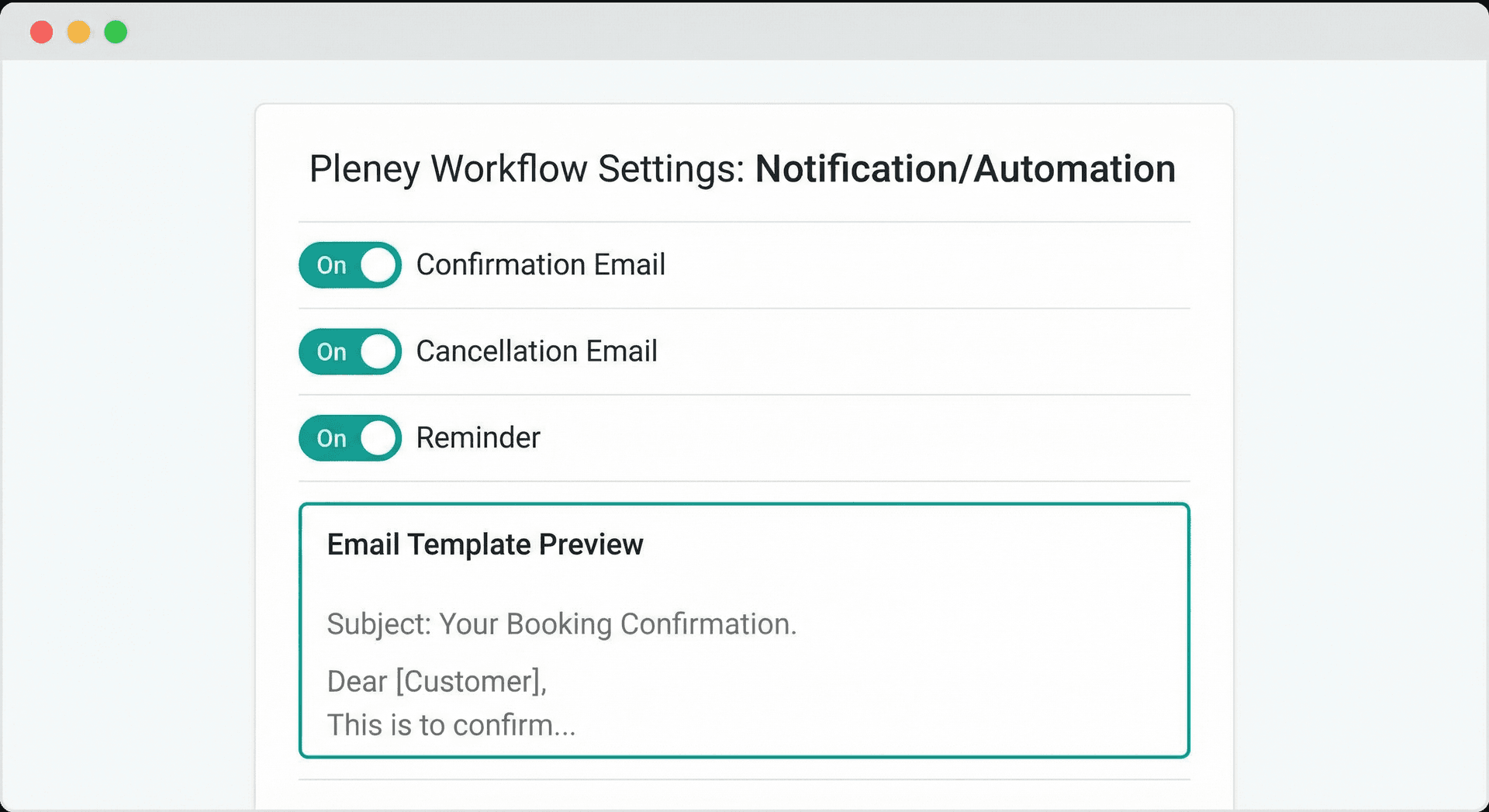
Confirmations are fully automated. Immediately after a successful booking, the customer receives a professional confirmation email with: the date and time, location (or online meeting link), duration of the appointment, any preparation instructions, and a .ics file to add directly to their calendar. You can fully customize the email templates with your own branding and text. Automatic reminders are also sent 24 hours before the appointment.
You can add your booking link to Google Calendar via the iCal feed.
Guests can cancel via the link in their confirmation email.
Download the .ics file from the confirmation page or use the iCal feed.
Capacity management is built into every event type. When creating a workshop or group session, you set the maximum number of participants (for example, 12 people). The system automatically tracks how many spots are still available and displays this in real-time on your booking page. Once a session is full, new visitors can sign up for the waitlist. When a cancellation occurs, waitlist candidates are automatically notified. Perfect for workshops, training sessions, group classes, or restaurant tables.
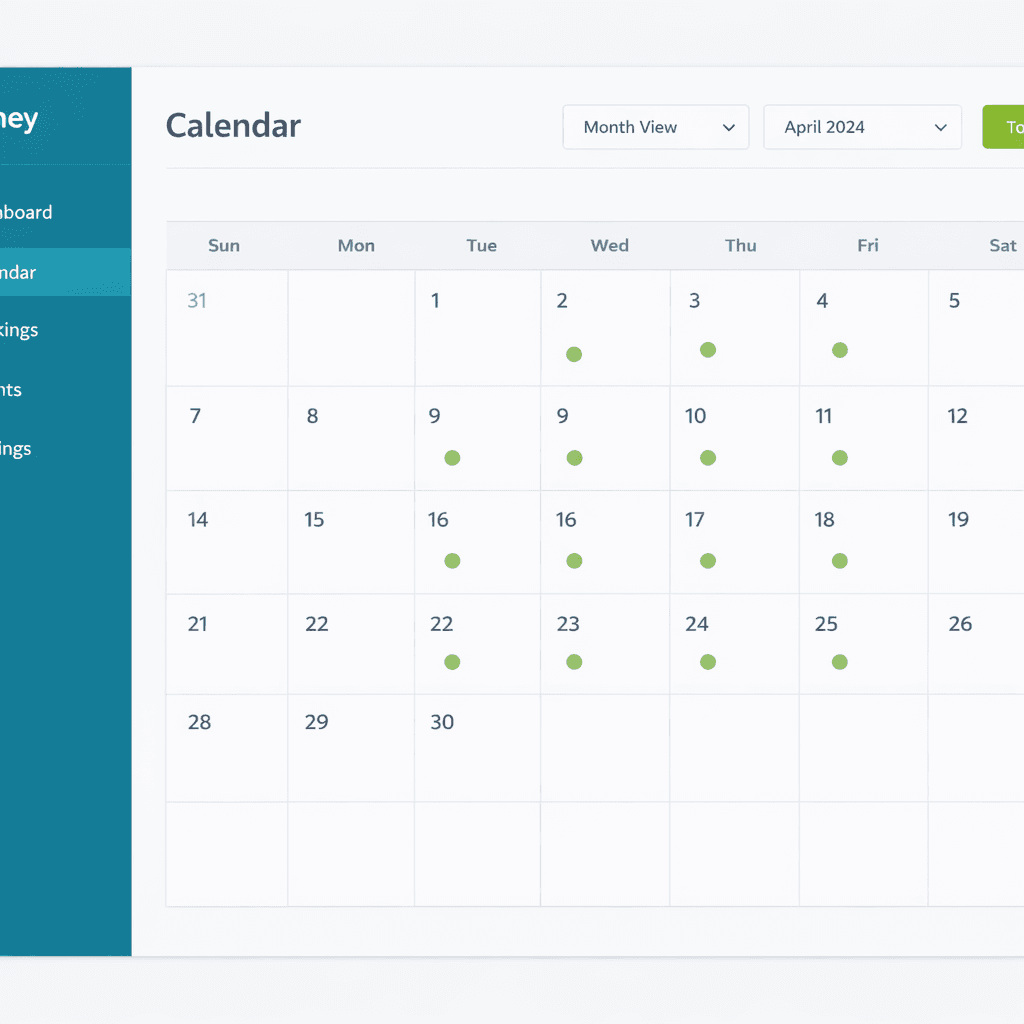
Go to Availability in the dashboard. Set per weekday which times you're available (e.g. Mon–Fri 09:00–17:00). Optional: choose a date range (from/to) so customers can only book within that period. This setting applies as default to all your event types.
For consultants with physical appointments, Pleny automatically calculates travel time between consecutive meetings. The customer enters their postcode + house number before choosing a time slot, and the system calculates actual travel time via PDOK (Dutch government geocoder) and OSRM (route planner). A nearby customer will see more available time slots than someone far away. You can also choose a fixed buffer (e.g. 45 minutes) as an offline fallback, configurable per event type in the admin panel.
Pleny automatically blocks time slots that conflict with existing appointments. For consultants (capacity = 1), slots are blocked if they overlap with an existing meeting or if there's insufficient travel time. For physical appointments in 'Smart' mode, the actual travel time is calculated based on your location. In 'Fixed' mode, a fixed buffer is applied. Restaurants (capacity > 1) use a count system where multiple bookings per slot are possible until capacity is reached.
When setting up travel time for physical appointments, you can choose between two modes. 'Smart (API)' calculates actual travel time based on the customer's address via PDOK and OSRM — the customer enters their postcode and house number and only sees time slots where there's genuinely enough travel time. 'Fixed (offline)' uses a fixed buffer after each appointment (e.g. 45 minutes), without external APIs. This is ideal as a backup when APIs are unavailable. You can easily switch via the admin panel in your event type settings.
Events
6 vragen
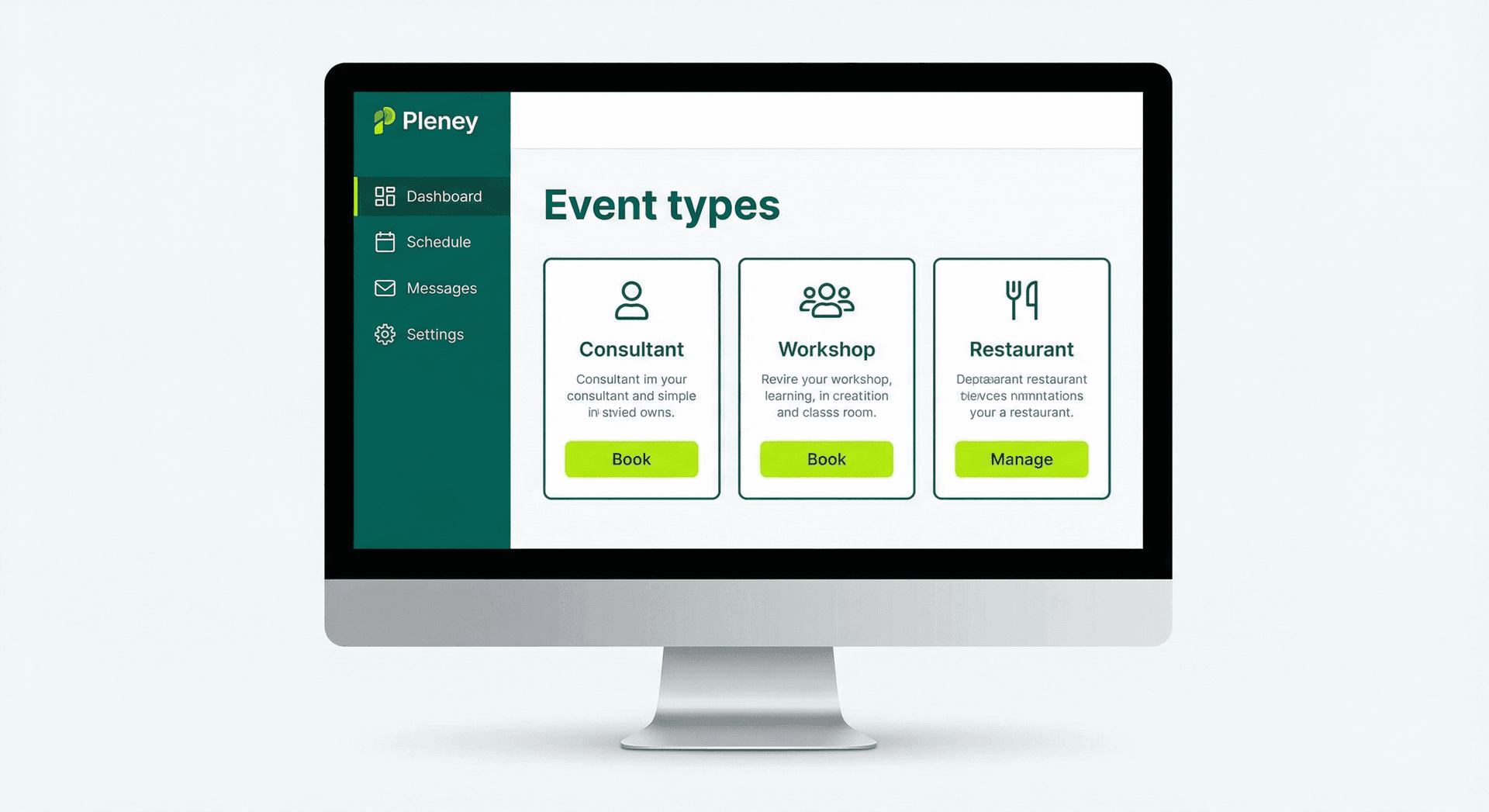
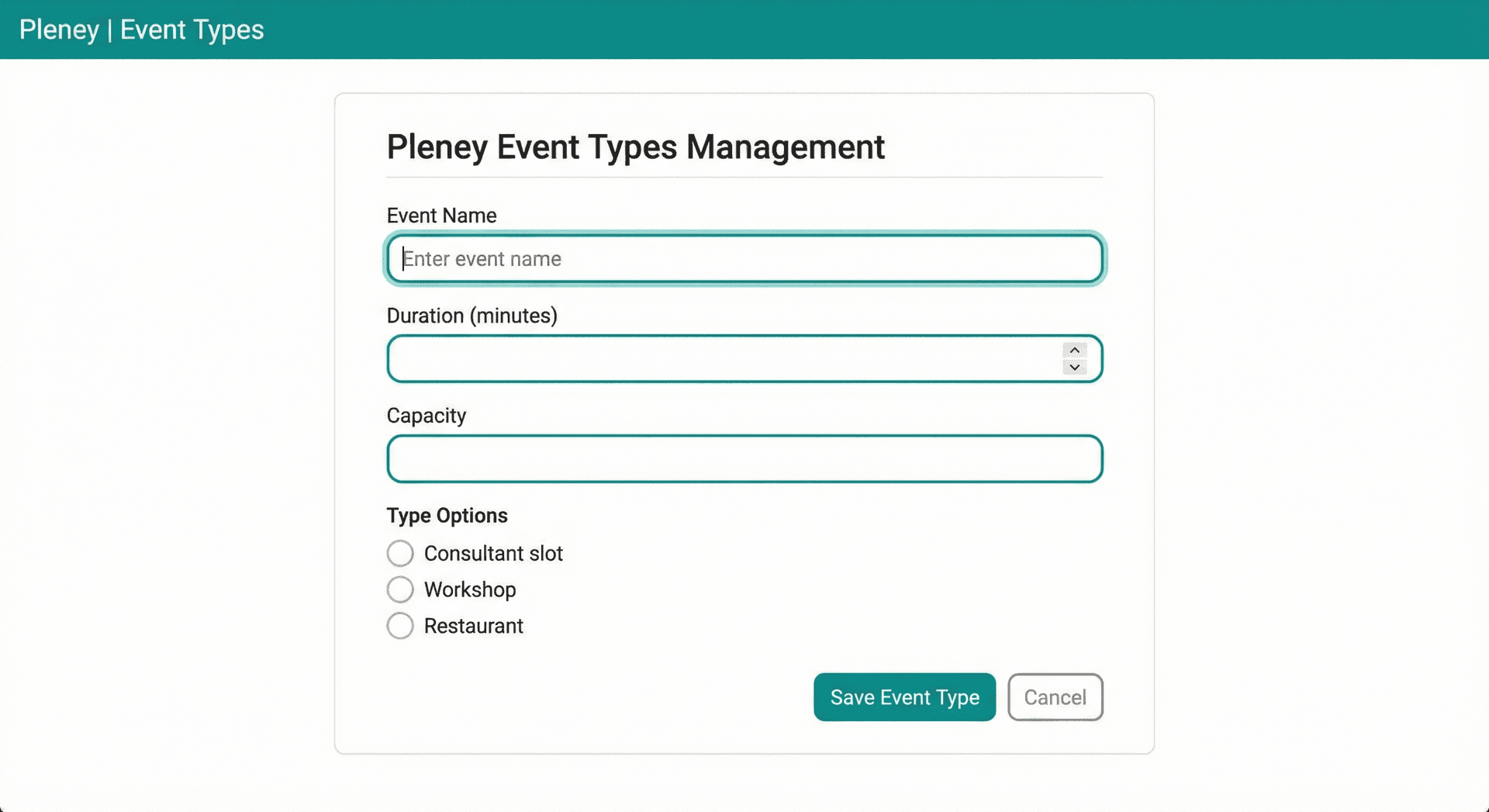
Event types are the core of Pleney - they define what you offer to your customers. Think of: 30-minute intake calls, 2-hour workshops, 60-minute strategy sessions, or restaurant tables for 4 people. For each event type you set: duration, price, availability, capacity, and location. You can create unlimited event types and each gets its own booking link. This way you can offer different services, each with their own schedule and conditions. Examples: 'Free introduction 15 min', 'Deep-dive consultation 90 min', 'Group workshop (max 10 people)'.
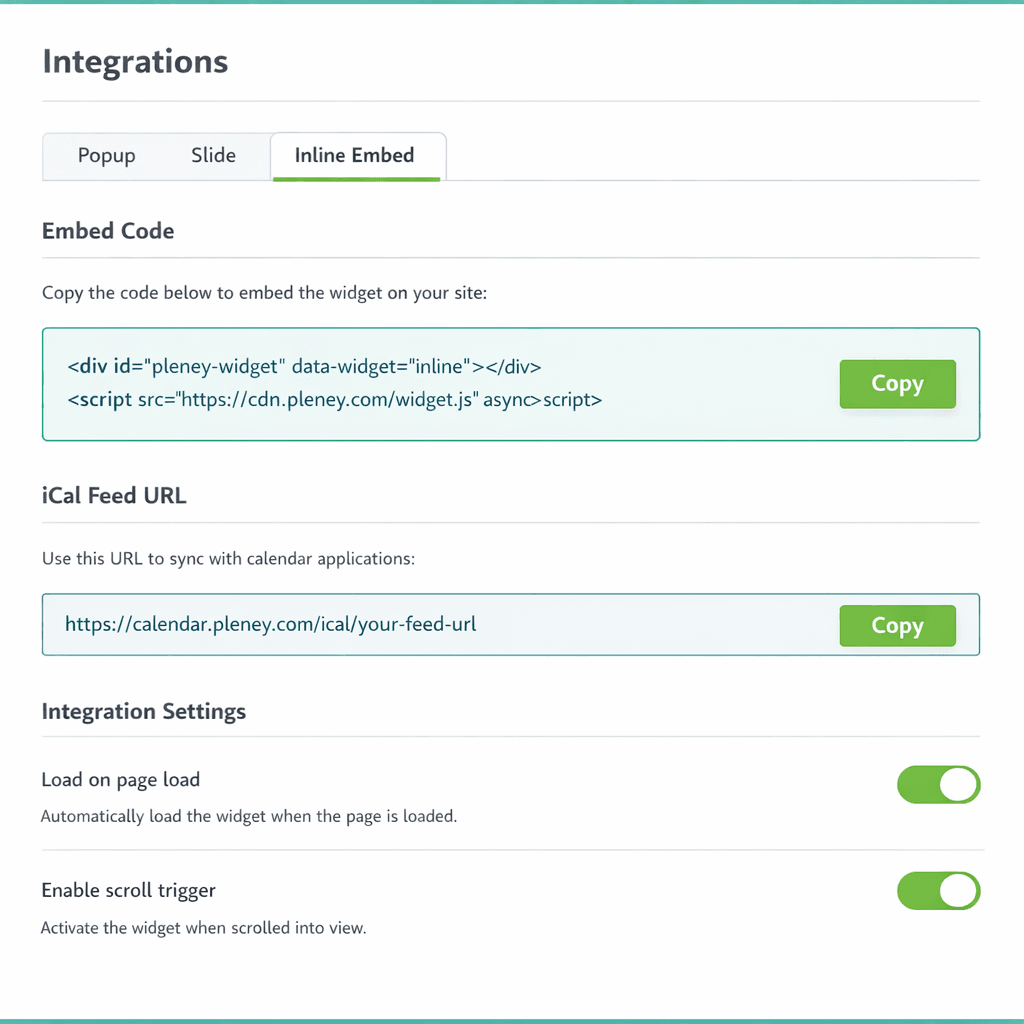
Yes, use the integrations page for popup, slide-in or inline embed on your website.
The free plan has a limit; upgrade for unlimited event types.
For one-on-one appointments with flexible scheduling and availability per service.
For table reservations with capacity per table and opening hours.
In the dashboard, next to 'Board' and 'List', you'll find a third view: 'Floor Plan'. Here you can drag and position your tables on an interactive canvas that mirrors your restaurant layout. You can draw rooms (e.g. Terrace, Indoor, Private) with custom names and colors as backgrounds. Tables can be rotated (45° per click) and their shape toggled (rectangle or circle). The floor plan shows real-time status: green (available), blue (reserved) and orange (seated).
Integrations
4 vragen
Automate confirmation emails, reminders and follow-ups.
Yes! Go to Settings → Workflow → Webhooks to set up one or more webhook URLs. With every new booking or cancellation, a JSON payload is automatically sent to your URL. You can test the connection with the test button.
Yes, via webhooks. Create a webhook URL in Zapier, Make.com, n8n or Pabbly Connect, and paste it in Settings → Workflow → Webhooks. This way you automatically send booking data to 7,000+ apps — like Google Sheets, Slack, HubSpot or your CRM.
Routing automatically distributes new bookings across your team. Round Robin: each booking goes to the next person in line. Priority: you set a fixed order (e.g. first John, then Pete). Useful for call centres, consultants or salons with multiple staff.
Billing
3 vragen
Upgrade your plan in Settings under Billing.
Contact us via the contact page or the help section in your dashboard.
Via Stripe Connect you can accept payments when booking. Connect your Stripe account in Settings under Payments. For event types with a price, customers can pay directly. The money goes to your Stripe account; Pleney only charges the subscription fee.
Features
12 vragen
Overview of all your bookings and services.
Manage your availability and view bookings per day.
Create different booking types.
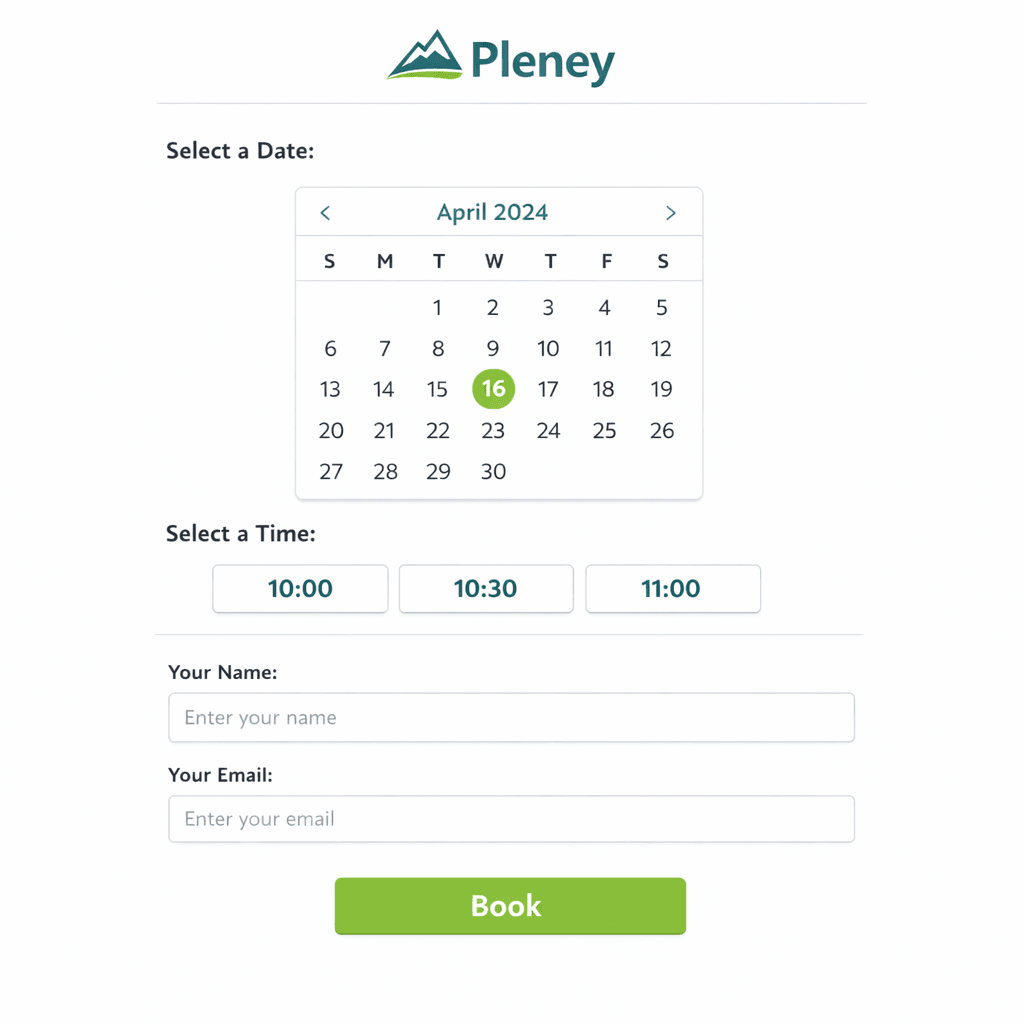
Your public booking link to share.
Automate emails and reminders.
Embed on your website and connect with tools.
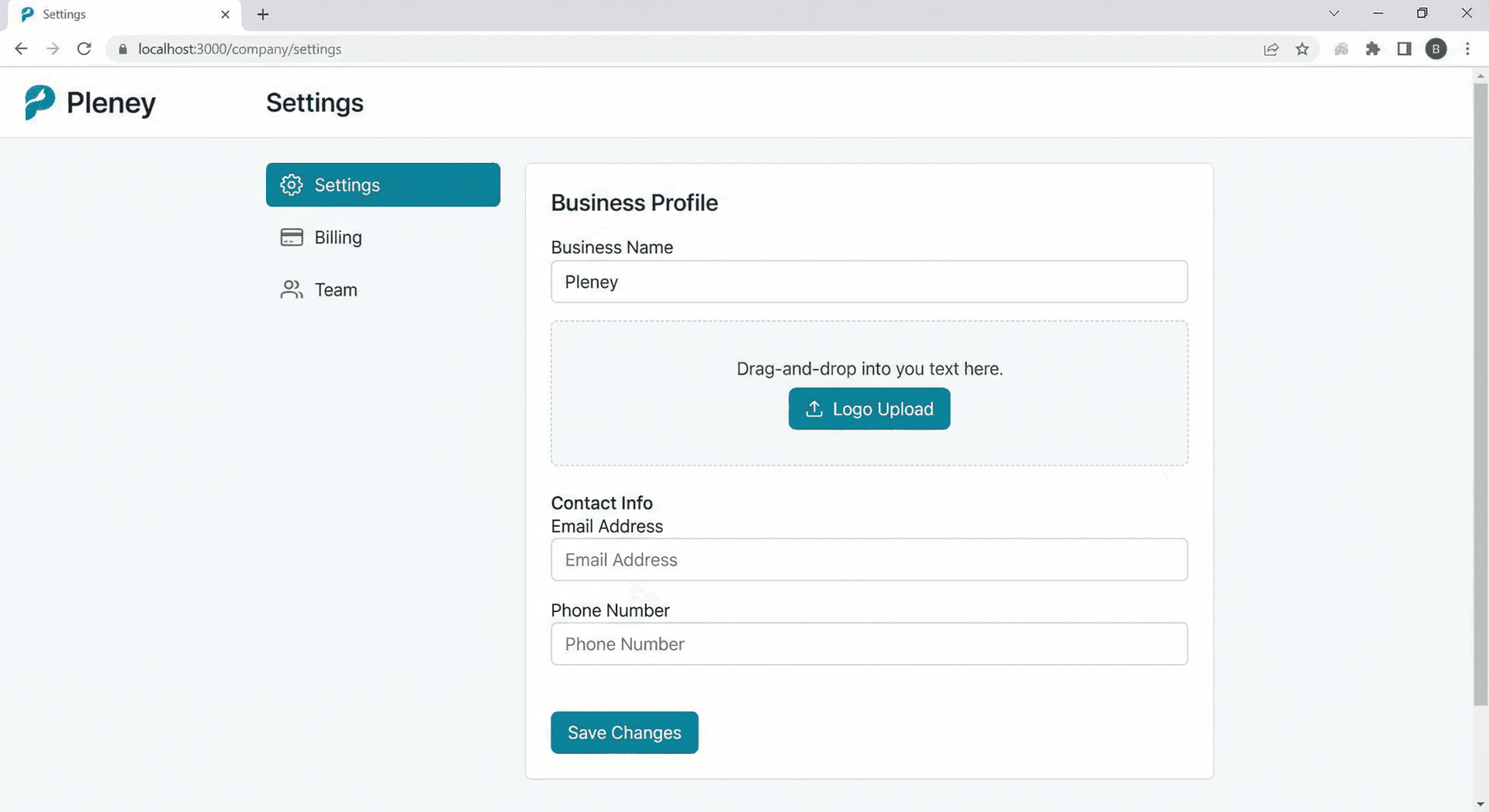
Configure your account, team and billing.
Set your weekly availability: which days and times you're open for bookings. You can also set a date range (e.g. only the next 3 months). This applies as default to all event types unless you choose different availability per event type.

View insights about your bookings: conversion (visitors vs. bookings), revenue per service, popular times and days, and monthly trends. Useful to see which services perform best and when you're busiest.

Overview of all customers who have booked with you. Search by name or email, filter by event type, and see how many bookings someone has made. Useful for returning customers and CRM.

Timeline of recent bookings and waitlist sign-ups. See at a glance what's new: confirmed appointments, cancellations, and people who signed up for the waitlist.

With a team of multiple members, you can automatically distribute bookings. Round Robin: each new booking goes to the next team member. Priority: set a fixed order of who gets first pick. Only available in consultant mode.
